To update Snipe-IT on Windows Server 2016 with Composer, the following commands will assist:
composer install --no-dev --prefer-source
composer dump-autoload
php artisan migrate
php artisan config:clear
php artisan config:cache
Thats it
To update Snipe-IT on Windows Server 2016 with Composer, the following commands will assist:
composer install --no-dev --prefer-source composer dump-autoload php artisan migrate php artisan config:clear php artisan config:cache
Thats it
We use Zabbix to monitor almost everything, from UPS boxes through to routers, switches, even printers. Today we were welcomed with the following issue:
Warning: Free disk space is less than 20% on volume /
As it the error suggests, the stock 20Gb VHD file for Zabbix Appliance is filling up. It wasn’t a straight forward process to extend the volume once you had made the changes in HyperV. The following steps will allow this volume to be extended and then applied to Zabbix Appliance.
To Extend the volume of Zabbix Appliance:
1: Extend the VHDX through HyperV disk manager
2: Boot Zabbix VM via a live bootable distro and load Gpartd – I used ‘Parted Magic’ but any live distro will do.
3: Extend volume, if unable to extend volume and can see the Padlock or Key icon, select ‘deactivate’ and resize.
4: Exit Gpartd and shutdown Zabbix Appliance
5: Remove bootable ISO and start Zabbix Appliance
6: Login to Zabbix Appliance via command line and enter the following:
sudo lvextend –l +100%FREE [MOUNTPOINT]
expand filesystem:
sudo resize2fs [MOUNTPOINT]
if you need to find the Mountpoint, use
sudo lvdisplay
You should now have an extended disk size in your Zabbix Appliance
Now that Azure uses IKEv2 for IPSec tunnels, here is an up to date script to bring up IPSec between RouterOS and Azure. Note that RouterOS must be Version 6.38 and above for IKEv2.
/ip ipsec mode-config
add name="AZURE CONFIG" system-dns=no
/ip ipsec proposal
set [ find default=yes ] disabled=yes
add enc-algorithms=aes-256-cbc,aes-128-cbc lifetime=1h name=AZURE pfs-group=none
/ip ipsec peer
add address=<AZURE PUBLIC IP> dpd-interval=disable-dpd enc-algorithm=aes-256,aes-128 exchange-mode=ike2 generate-policy=port-strict local-address=<SRC PUBLIC IP> secret=<IPSEC SECRET>
/ip ipsec policy
set 0 disabled=yes
add comment="IPsec Tunnel to Azure" dst-address=<DEST LAN SUBNET> proposal=AZURE sa-dst-address=<AZURE PUBLIC IP> sa-src-address=<SRC PUBLIC IP> src-address=<SRC LAN SUBNET> tunnel=yes
Many companies are seeking for Cisco SFP alternatives to help cut down the costs on these expensive modules.
A frequent customer problem with Cisco’s new line of Catalyst switches is that they do not support 3rd party (non-Cisco) SFPs – or at least they do not seem to…
If you’ve just replaced your network switches and tried using any 3rd party SFPs to connect your network backbone, you’ll quickly stumble across an error similar to the following:
%PHY-4-UNSUPPORTED_TRANSCEIVER: Unsupported transceiver found in Gi1/0/0
%GBIC_SECURITY_CRYPT-4-VN_DATA_CRC_ERROR: GBIC in port 65538 has bad crc
Congratulations! The Catalyst switch has just disabled the GBIC port! This happens because Cisco Catalyst switches are configured by default not to work with non-Cisco SFPs.
When a SFP is inserted into a switch’s GBIC port, the switch immediately reads a number of values from the SFP and if it doesn’t like what it sees, it throws the above error message and disables the port.
All SFP modules contain a number of recorded values in their EEPROM and include:
Despite the error displayed, which leaves no hope for a solution, keep smiling as you’re about to be given one.
There are two undocumented commands which can be used to force the Cisco Catalyst switch to enable the GBIC port and use the 3rd party SFP:
3750G-Stack(config)# service unsupported-transceiver

Warning: When Cisco determines that a fault or defect can be traced to
the use of third-party transceivers installed by a customer or reseller,
then, at Cisco's discretion, Cisco may withhold support under warranty or
a Cisco support program. In the course of providing support for a Cisco
networking product Cisco may require that the end user install Cisco
transceivers if Cisco determines that removing third-party parts will
assist Cisco in diagnosing the cause of a support issue.

3750G-Stack(config)# no errdisable detect cause gbic-invalid
When entering the service unsupported-transceiver command, the switch will automatically throw a warning message as a last hope to prevent the usage of a 3rd party SFP.
The no errdisable detect cause gbic-invalid command will help ensure the GBIC port is not disabled when inserting an invalid GIBC.
Since the service unsupported-transceiver is undocumented, if you try searching for the command with the usual method (?), you won’t find it:
3750G-Stack(config)# service ?
compress-config              Compress the configuration file
  config                             TFTP load config files
  counters                         Control aging of interface counters
  dhcp                               Enable DHCP server and relay agent
  disable-ip-fast-frag           Disable IP particle-based fast fragmentation
  exec-callback                   Enable exec callback
  exec-wait                       Delay EXEC startup on noisy lines
  finger                            Allow responses to finger requests
  hide-telnet-addresses     Hide destination addresses in telnet command
  linenumber                    enable line number banner for each exec
  nagle                             Enable Nagle's congestion control algorithm
  old-slip-prompts             Allow old scripts to operate with slip/ppp
  pad                              Enable PAD commands
  password-encryption      Encrypt system passwords
  password-recovery        Disable password recovery
  prompt                         Enable mode specific prompt
  pt-vty-logging               Log significant VTY-Async events
  sequence-numbers        Stamp logger messages with a sequence number
  slave-log                      Enable log capability of slave IPs
  tcp-keepalives-in          Generate keepalives on idle incoming network connections
  tcp-keepalives-out       Generate keepalives on idle outgoing network connections
  tcp-small-servers         Enable small TCP servers (e.g., ECHO)
  telnet-zeroidle             Set TCP window 0 when connection is idle
  timestamps                 Timestamp debug/log messages
  udp-small-servers       Enable small UDP servers (e.g., ECHO)

3750G-Stack(config)# service
The same applies for the no errdisable detect cause gbic-invalid command.
We tried both service unsupported-transceiver & no errdisable detect cause gbic-invalid commands on 2960G, 3560G, 3750G, 4507R and 4507R-E Catalyst switches and all accepted the commands without a problem. In fact if the Catalyst switch is running IOS 12.2(25)SE and above, the undocumented commands are available.
There are mixed feelings about this. We certainly do not recommend using non-Cisco SFP’s in production environments, however in a lab environment, its most probably a cheap way out.
When using 3rd party GBICs, one must keep in mind that Cisco TAC will not provide any support for problems related to the SFPs as they are totally unsupported. Here is a small portion from the Cisco Catalyst 3750G Q&A that refers to the usage of 3rd party SFP modules on the switch:
Q. Do the Cisco Catalyst 3750 Series Switches interoperate with SFPs from other vendors?
TLDR;
To allow the Cisco iOS to use the non-branded SFP’s the following needs to be done at the switch terminal:
Technical:
From the Enable command line on the Cisco Switch enter:
2960x(config)# service unsupported-transceiver <press enter>
2960x(config)# no errdisable detect cause gbic-invalid <press enter>
Save running config to switch. Profit.
To launch Windows updates via command line on Server 2016 and Windows 10 machines:
(New-Object -ComObject Microsoft.Update.AutoUpdate).DetectNow()
This is a Powershell command, the earlier CMD command line wuauclt.exe /updatenow no longer works for these OS’s
open powershell(as administrator)Set-ExecutionPolicy UnrestrictedGet-AppxPackage -AllUsers | where-object {$_.name -notlike "*Microsoft.WindowsStore*"} | where-object {$_.name -notlike "*Microsoft.WindowsCalculator*"} | Remove-AppxPackageGet-AppxProvisionedPackage -online | where-object {$_.packagename -notlike "*Microsoft.WindowsStore*"} | where-object {$_.packagename -notlike "*Microsoft.WindowsCalculator*"} | Remove-AppxProvisionedPackage -online
To restore almost all the modern apps in windows 10
open powershell(as administrator)Set-ExecutionPolicy UnrestrictedGet-AppXPackage | Foreach {Add-AppxPackage -DisableDevelopmentMode -Register "$($_.InstallLocation)AppXManifest.xml"}
The Routing table dictates where all packets go when they leave your system. On most environments, all packets that leave your system will be forwarded over to your router or hub, and from there out to the internet.
In some circumstances, you may have a testing network configured to duplicate another environment, or you may be configuring a more complex network topology that requires the use of additional routes. Adding routes to your machine is a useful testing tool for some of these situations.
Syntax:
route ADD xxx.xxx.xxx.xxx MASK xxx.xxx.xxx.xxx xxx.xxx.xxx.xxx
Means:
route ADD “network” MASK “subnet mask” “gateway ip”
For example, if you were on the 192.168.1.0 network, and you had a gateway on 192.168.1.12 configured to access the 10.10.10.0/24 network, you would use a route add statement like this:
route ADD 10.10.10.0 MASK 255.255.255.0 192.168.1.12
Your routing table should now reflect that change, and all traffic to the 10.10.10.x range will now be sent over to the gateway machine.
The route add change will only stick across reboots if you add it with the -p flag, as in the following:
route -p ADD 10.10.10.0 MASK 255.255.255.0 192.168.1.12
By default, only the members of Domain Admins group have the remote RDP access to the domain controllers. In this article we’ll show how to grant domain users RDP access to the domain controllers.
Many can quite reasonably object why ordinary domain users should have access to the DC desktop. Indeed, in small or middle size infrastructures, when several administrators with the privileges of domain admins maintain them, you’ll hardly need this. However, in large corporate networks maintained by many administrators, it may become necessary to grant RDP access to the DC for different server administration groups, monitoring team, duty administrators, or other technical specialists. Also, sometimes some third-party services, not managed by the domain administrators, are deployed on the DC, and there’s a need to maintain these services.
After the server has been promoted to a domain controller, when trying to open Local Users and Groups(lusrmgr.msc) console, it returns the following error:
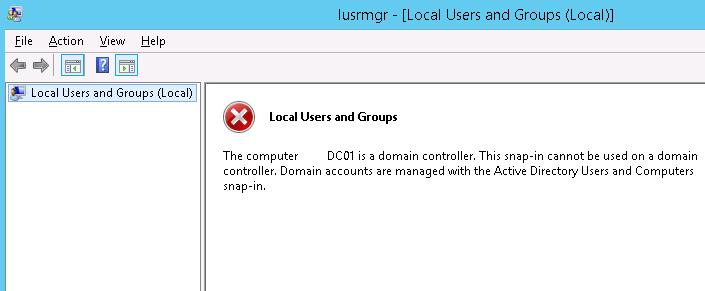
So it feels that there are no local groups on the domain controller. Actually, local groups on the domain controller don’t disappear. They can be managed from the command prompt.
Display the members of the local group Remote Desktop Users on the domain controller:
net localgroup "Remote Desktop Users"
As you can see, it is empty. Add a domain user it-pro to it. (In our example, it-pro is a standard domain user without administrative privileges.)
net localgroup "Remote Desktop Users" /add corpit-pro
Make sure that the user is added to this group:
net localgroup "Remote Desktop Users"
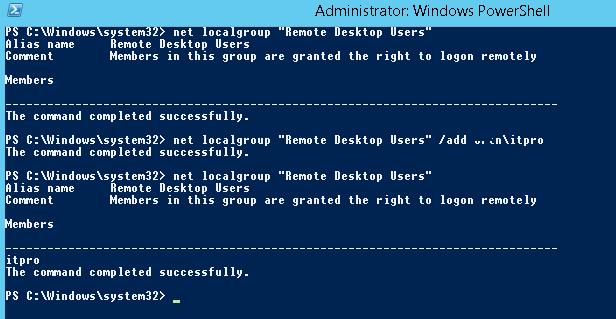
However, after that a user still cannot connect to the DC using Remote Desktop.
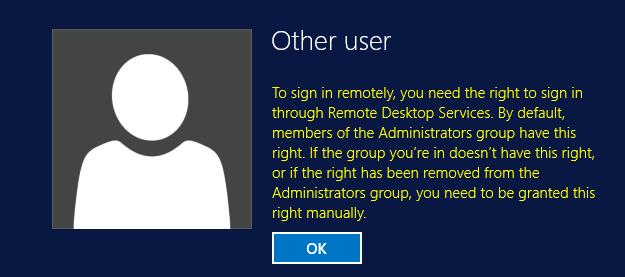
The matter is that the possibility of the RDP connection in Windows is determined by Allow log on through Remote Desktop Services policy (In Windows 2003 or earlier this policy is called Allow log on through terminal services). After the server is promoted to the DC, only the Administrators group is left in this policy.
To allow connection to the domain controllers members of the Remote Desktop Users group you need to:
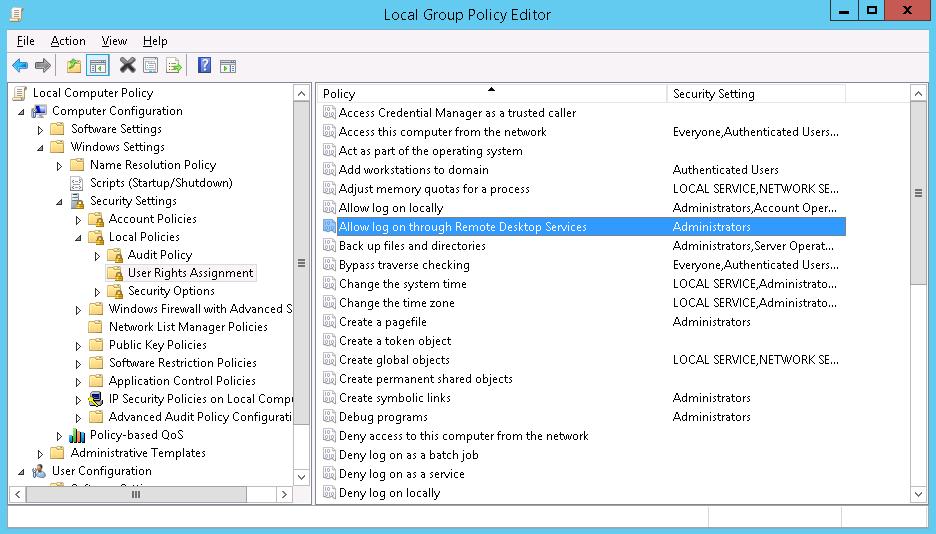
gpupdate /forceAfter the changes are made, the users or groups specified above will have the opportunity to connect to the domain controller using RDP.
Method 1:
===============
1. Put the Windows Server 2012 R2 installation disc into the disc drive, and then start the computer.
2. Press a key when the message indicating “Press any key to boot from CD or DVD …”. appears.
3. Select a language, a time, a currency, and a keyboard or another input method, and then click Next.
4. Click Repair your computer.
5. Click the operating system that you want to repair, and then click Next.
6. In the System Recovery Options dialog box, click Command Prompt.
7. Type sfc /scannow, and then press ENTER.
Method 2:
===============
1. Put the Windows Server 2012 R2 installation disc in the disc drive, and then start the computer.
2. Press any key when the message indicating “Press any key to boot from CD or DVD …”. appears.
3. Select a language, time, currency, and a keyboard or another input method. Then click Next.
4. Click Repair your computer.
5. Click the operating system that you want to repair, and then click Next.
6. In the System Recovery Options dialog box, click Command Prompt.
7. Type Bootrec /RebuildBcd, and then press ENTER.
Method 3:
===============
1. Put the Windows Server 2012 R2 installation disc into the disc drive, and then start the computer.
2. Press a key when the message indicating “Press any key to boot from CD or DVD …”. appears.
3. Select a language, a time, a currency, and a keyboard or another input method, and then click Next.
4. Click Repair your computer.
5. Click the operating system that you want to repair, and then click Next.
6. In the System Recovery Options dialog box, click Command Prompt.
7. Type BOOTREC /FIXMBR, and then press ENTER.
8. Type BOOTREC /FIXBOOT, and then press ENTER.
9. Type Drive:bootBootsect.exe /NT60 All, and then press ENTER.
Note: In this command, Drive is the drive where the Windows Server 2012 R2 installation media is located.
1. Under Computer Configuration, go to Policies, Windows Settings, Security Settings, then Software Restriction Policies.
2. If you haven’t activated Software Restriction Policies, do it now. Once done, you’ll see the following in the main area when Software Restriction Policies is clicked.
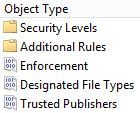
3. Right-click on Additional Rules and choose New Path Rule…
4. Create the SRP by copying my configuration below and click OK. Make sure the Path is C:WindowsSystem32GWXGWX.exe and the Security Level is Disallowed.
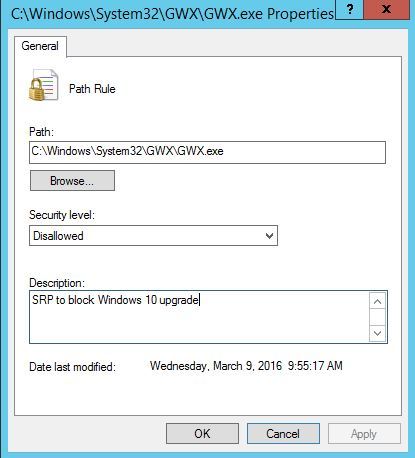
From here on, you can try running a gpupdate /force or restarting a computer that was affected by Microsoft’s GwX popup. The Windows 10 notification icon should be gone on those affected computers.