You can check this by running the following command from a CMD or Powershell prompt:
certutil -config - -ping
This will prompt you with all the CA’s available in the organization.
You can check this by running the following command from a CMD or Powershell prompt:
certutil -config - -ping
This will prompt you with all the CA’s available in the organization.
If you have tried to run a PowerShell script that isn’t signed, you’ve likely run into the security error “File … cannot be loaded. The file is not digitally signed. The script will not be executed on the system. “ This means that the script is not trusted to be run on your system.
If you’d like to sign the script, here is a walkthrough:
Alternatively, you can change your signing policy. This tends to be the practice most of the time… 😉
http://technet.microsoft.com/en-us/library/ee176961.aspx
You can choose, “Set-ExecutionPolicy Unrestricted” or, replace unrestricted with “Restricted”, “AllSigned”, or “RemoteSigned”
Our friend here is PowerShell. Open a PS command console and use the following commands:
gwmi win32_bios | select SerialNumber
gwmi win32_ComputerSystem | select OEMStringArray
For some odd reason Microsoft decided to leave this feature disabled by default, and place it within a optional feature set called “Desktop Experience“.
If your hard drive is getting full and you wish to do a disk cleanup, there are two ways to enable the Disk Cleanup tool. We recommend using option #2 below for several reasons:
– Installing the Desktop Experience feature will not only intall Disk Cleanup, but a lot of other utilities you likey don’t need on a server (sound recorder, desktop themes, etc).
– Installing the Desktop Experience feature will require a server reboot
How to enable the Disk Cleanup tool:
1) Go to Programs & Features, and in the Features section, enable/install “Desktop Experience”. The downside to this is that you will need to reboot your server after installating this and it installs other components you do not need on a server.
2) [RECOMMENDED] – All you really need to do is copy some files that are already located on your server into specific system folders, as described at http://technet.microsoft.com/en-us/library/ff630161(WS.10).aspx
The location of the files you need to copy depend on your version of Windows:
| Operating System | Architecture | File Location |
| Windows Server 2008 R2 | 64-bit | C:\Windows\winsxs\amd64_microsoft-windows-cleanmgr_31bf3856ad364e35_6.1.7600.16385_none_c9392808773cd7da\cleanmgr.exe |
| Windows Server 2008 R2 | 64-bit | C:\Windows\winsxs\amd64_microsoft-windows-cleanmgr.resources_31bf3856ad364e35_6.1.7600.16385_en-us_b9cb6194b257cc63\cleanmgr.exe.mui |
| Windows Server 2008 | 64-bit | C:\Windows\winsxs\amd64_microsoft-windows-cleanmgr.resources_31bf3856ad364e35_6.0.6001.18000_en-us_b9f50b71510436f2\cleanmgr.exe.mui |
| Windows Server 2008 | 64-bit | C:\Windows\winsxs\amd64_microsoft-windows-cleanmgr_31bf3856ad364e35_6.0.6001.18000_none_c962d1e515e94269\cleanmgr.exe.mui |
| Windows Server 2008 | 32-bit | C:\Windows\winsxs\x86_microsoft-windows-cleanmgr.resources_31bf3856ad364e35_6.0.6001.18000_en-us_5dd66fed98a6c5bc\cleanmgr.exe.mui |
| Windows Server 2008 | 32-bit | C:\Windows\winsxs\x86_microsoft-windows-cleanmgr_31bf3856ad364e35_6.0.6001.18000_none_6d4436615d8bd133\cleanmgr.exe |
Once you’ve located the files move them to the following locations:
You can now launch the Disk cleanup tool by running Cleanmgr.exe from the command prompt.
You can use Powershell to achieve this:
get-aduser -Filter * -SearchBase "OU=Users,DC=example,DC=com" | set-aduser -ChangePasswordAtLogon $True
First I’ll give my own answer
You should go with PCL 6. Here’s why: You don’t need PostScript. If you did need it you would know it and you wouldn’t be asking this question. PostScript is more problematic than is PCL, so if you don’t need it it’s better avoided. It’s more problematic in these ways and more: harder to find drivers (for a Win ME computer for example), more resource hungry (both on the printer, the workstation, and the network), HP’s PostScript drivers are going to be much buggier than their PCL drivers, the quality of HP’s PostScript emulation (that is, a third-party clone of Adobe’s PostScript program) is highly questionable whereas the PCL is an HP product and therefore a better risk, PostScript tends to throw obscure errors when printing and requires obscure expertise to troubleshoot (very frustrating)-PCL does this less, PostScript tends to run the printer out of memory easier, PostScript drivers offer lots of obscure settings that are useful only to industry pros (like color separations, e.g.) and will only confuse normal people and give them more ways to cause themselves problems, and on difficult prints PostScript will often be slower. All that off the top of my head.
PCL6 is a powerful page description language and will do anything you ever need to do. Quality is not an issue, PCL works fine and can print the same vector graphics and vector fonts as can PostScript. Photos and other bit mapped graphics are outside the realm of PostScript’s power and thus the two languages will print them the same, except that PostScript will render the photo in text and blow up its binary size, thus taking longer to download it to the printer (it has to do this because PostScript is a language of text, there is nothing binary there. Everything is rendered into text characters).
PostScript offers many advantages, but mostly to printing industry pros. An example is that if you want to print something on a super-high resolution image setter at some local high end printing shop they will likely accept the file only in Adobe Photoshop or PostScript formats, thus if you are using the PostScript driver you have a way to make such a file. However, PDF format can be used now in many situations where PostScript was formerly required. PostScript drivers do tend to offer more features than the PCL driver and some may be useful to you (like Booklet printing e.g.) but at this late date and age it’s more likely that the PCL driver offers everything you would ever need, and the PostScript driver may not offer much at all extra that you could use.
When mounting a SQL database as the default user and get an error user not found, use the following accounts:
Service/Database Accounts –
NT SERVICE\MSSQLSERVER NT SERVICE\SQLSERVERAGENTI started getting this error on the Guest OS.
* Source: Disk
* Event Log: System
* Type: Warning Event
* Event ID: 51
* An error was detected on device \Device\Harddisk0\DR0 during a paging operation.
The HyperV host does not show any errors in any event logs.
Windows guest operating systems that are using virtual disks on non-local datastores might experience unexpected blue screens.
This problem occurs when the responses from the storage array take longer than the guest operating system expects to wait. The default disk timeout period in Windows is too short to handle the longer delays that can occur in a SAN, NFS, or iSCSI environment, and a blue screen error is the result of exceeding this timeout.
Increase the disk timeout to 60 seconds in the Windows virtual machines by editing the Windows registry as described below:
1. In the registry, go to HKEY_LOCAL_MACHINE/System/
2. Click Edit/Add value.
3. Set the value name to TimeOutValue.
4. Set the data type to REG_DWORD.
5. Set the data to 0x03c hex (or 60 decimal).
6. Reboot the virtual machine.
Note:
* Contact your Storage vendor to confirm whether a specific TimeOutValue setting has been identified for your particular environment.
* Increasing this disk timeout setting does not affect the performance of the guest operating system or virtual machine under normal operating conditions, but you must verify how the applications you are running in the guest operating system handle disk access delays.
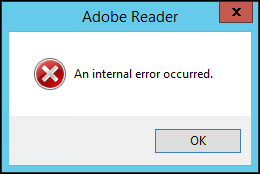
I installed Adobe Reader XI on our Windows Server 2012 R2 RDS servers, and we start to get this error when we started Adobe Reader.
After some time on Google i found out that disabling Adobe Reader XI sandbox protection mode fixed the error.
go to the registry and find this key:
HKEY_LOCAL_MACHINE\SOFTWARE\Policies\Adobe\Acrobat Reader\11.0\FeatureLockDown
Create a new REG_DWORD
Value Name
bProtectedMode
Value Data
0
I have found this issue may not be due to a problem with the Remote Desktop tool but an issue with windows 8.1.
This is with the Windows 8.1 release from MSDN/Technet
• Configure Network Level Authentication
1. Open Regedit.
2. In the navigation pane, locate and then click the following registry
subkey: HKEY_LOCAL_MACHINE\SYSTEM\CurrentControlSet\Control\Lsa
3. In the details pane, right-click Security Packages, and then click Modify.
4. In the Value data box, type tspkg. Leave any data that is specific to other SSPs, and then click OK.
I was left with “” and tspkg
5. In the navigation pane, locate and then click the following registry subkey:
HKEY_LOCAL_MACHINE\SYSTEM\CurrentControlSet\Control\SecurityProviders
6. In the details pane, right-click SecurityProviders, and then click Modify.
7. In the Value data box, type credssp.dll. Leave any data that is specific to other SSPs, and then click OK. (This was already in my config so I didn’t change it)
8. Exit Registry Editor.
9. Restart the computer.
Once done, ASG RD worked fine for all my connections again.